
PDF to JPG Converter
Upload PDF Document
Drag and drop or click to select
How to Convert a PDF to JPG
Sometimes you receive a PDF document but only need the visual content as a standard image file. While PDFs are great for printing and reading, they are not always easy to share on social media or insert into other presentations. This PDF to JPG Converter solves that problem by turning your document pages into high quality pictures.
This tool works entirely within your web browser. You do not need to install complex software or wait for large files to upload to a remote server. You can simply open your document, choose the exact pages you want, and save them as standard JPG files instantly.
What This PDF to JPG Converter Does
This converter extracts pages from your uploaded PDF and renders them into flat JPG images. When you load a document, the tool reads the total number of pages and lets you choose your output settings.
You can decide whether you want small file sizes for quick sharing or high resolution images for professional printing. The tool renders the document clearly on a solid white background, applies your chosen compression, and provides a preview of every converted page. You can then download individual pages or save all the generated images to your device.
Step-by-Step Instructions
Using the converter is very straightforward. Follow these simple steps to extract your images:
- Open the PDF to JPG Converter.
- Drag and drop your document into the upload area or click the Choose File button.
- Review the document information to confirm the page count and file size.
- Select which pages you want to convert from the dropdown menu.
- Choose your required resolution and output image quality.
- Click the Convert to JPG button.
- Watch the progress bar as the tool prepares your images.
- Check the generated image previews to ensure they look correct.
- Click Download JPG on any individual image or use the Download All Images button.
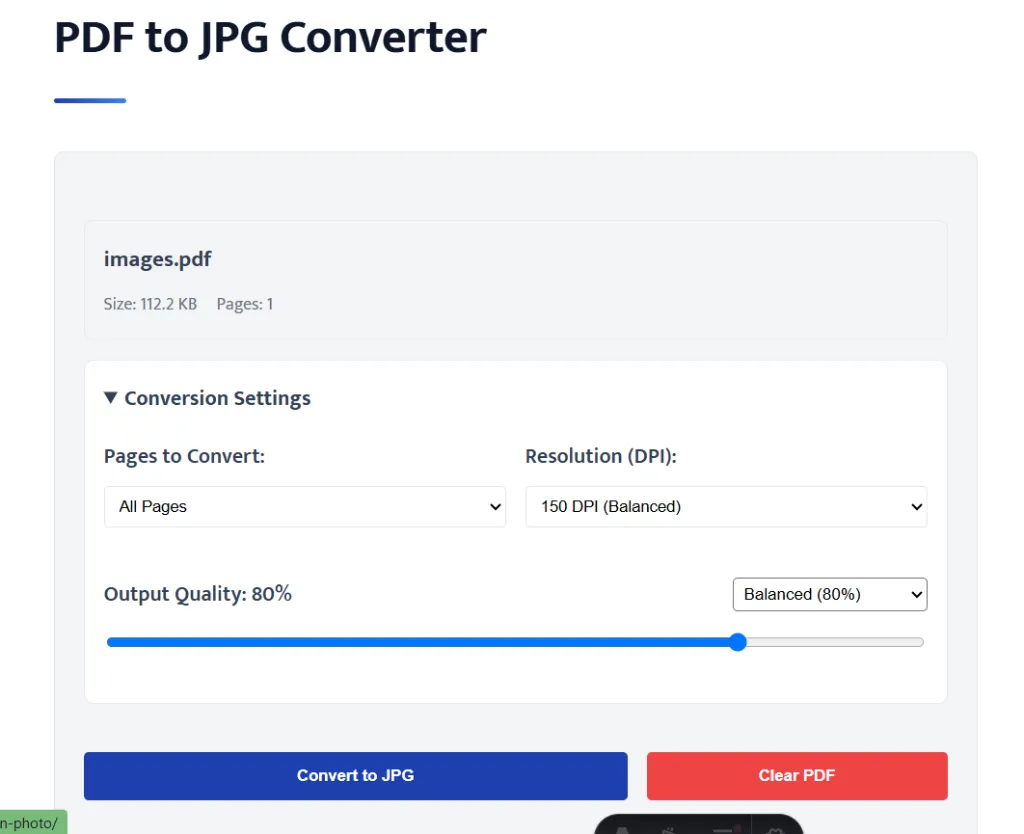
Selecting PDF Pages
Many times you only need one or two pages from a massive document. Converting a massive file completely can take unnecessary time and memory.
This tool gives you complete control over page selection. By default the tool is set to convert All Pages. If you change this setting to Custom Range, a text box will appear. Here you can type the exact pages you need. For example, typing 1-3, 5, 7 will instruct the tool to extract only pages one through three, page five, and page seven.
Choose Output Resolution and DPI
Resolution determines the physical pixel dimensions of your final image. A higher resolution creates a larger, sharper picture but also increases the file size and processing time.
You can select your preferred resolution from the provided dropdown menu. Choosing 72 DPI generates standard web sized images that load very quickly. Choosing 150 DPI provides a balanced output suitable for most clear digital viewing. Selecting 300 DPI instructs the tool to scale the document up significantly, creating a massive, highly detailed image perfect for professional printing.
Adjust Output Image Quality
Different situations require different file sizes. If you need to email an image quickly, you want a small file. If you are archiving an important document, you want maximum clarity.
The converter features an Output Quality slider that controls the final JPG compression. You can use the quick preset menu to select Small File Size, Balanced, or High Quality. If you prefer manual control, you can drag the slider anywhere between 10 and 100 percent. Lowering the percentage reduces the file size but may introduce slight blurriness around small text.
Check the Converted Pages
After the progress bar completes, a summary box will appear showing exactly how many pages were successfully converted and their total combined file size.
Below the summary, you will see a clean preview section containing a card for every generated page. Each card displays the original page number, the exact pixel dimensions of the new image, and the final JPG file size. This information helps you confirm that your quality and resolution settings produced the right results before you download anything.
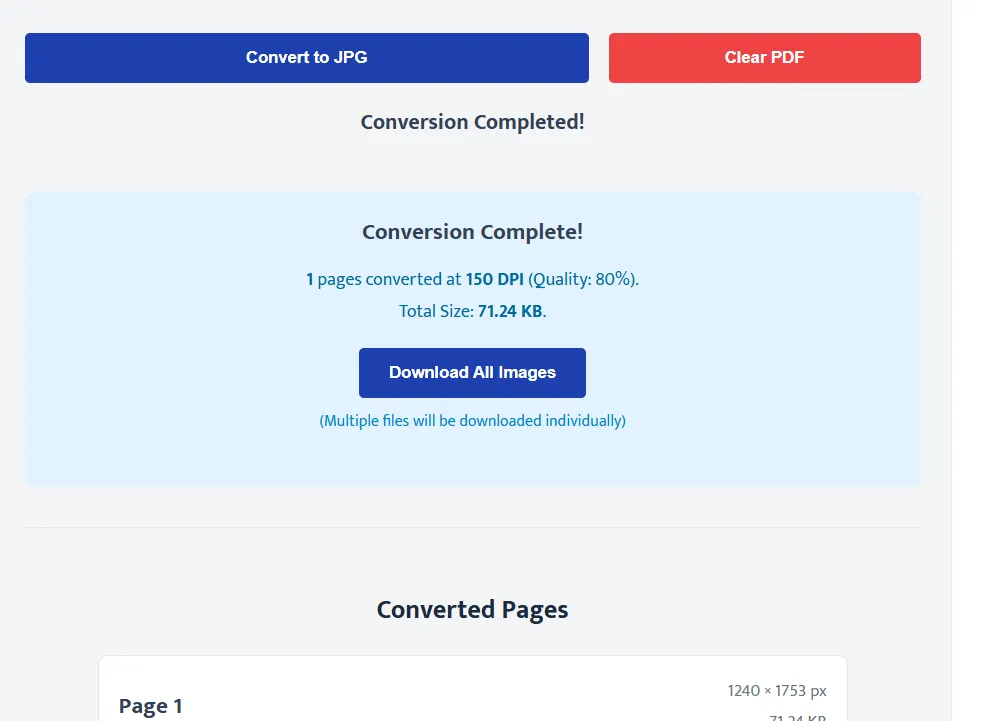
Download JPG Images
The tool offers very flexible download options. Inside every preview card, there is an individual Download JPG button. Clicking this securely saves that specific page to your device with a clear filename. Next to it is a Copy Image button, which lets you copy the picture directly to your clipboard so you can paste it straight into an email or document.
If you converted a large document and want all the images at once, simply click the Download All Images button located at the top of the preview section. The tool will automatically queue and download every generated file consecutively directly to your default downloads folder.
Common Problems and Solutions
PDF fails to upload
Make sure your file is a valid PDF document and is not heavily encrypted or password protected.
Conversion process is very slow
If you uploaded a document with hundreds of pages and selected 300 DPI, the browser needs significant time and memory to render every pixel. Try selecting a smaller page range or dropping the resolution to 150 DPI.
Images look too blurry
Increase the Output Quality slider to a higher percentage and ensure the resolution is set to at least 150 DPI.
Download All button shows a browser warning
When downloading multiple files at once, modern web browsers often ask for permission to prevent spam. Simply click Allow when your browser prompts you for multiple downloads.
Frequently Asked Questions
What is a PDF to JPG Converter?
It is a browser based tool that extracts pages from a PDF document and turns them into standard JPG image files.
Can I convert just one page of a PDF?
Yes. You can use the Custom Range option in the settings panel to type the exact page number you want to extract.
Does converting to JPG reduce the file size?
It depends on your settings. Selecting 72 DPI and a lower quality percentage will usually create very small JPG files, but selecting 300 DPI will create large, high quality images.
Can I extract images from a password protected PDF?
No. The tool cannot read the contents of a locked PDF. You must provide an unlocked document.
Are my PDF files uploaded to a server?
No. This tool processes your documents entirely within your own web browser. Your private files are never uploaded to any external server.
Why are the downloaded images inside separate files?
JPG is a standard image format that only supports one picture per file. Unlike a PDF which can hold multiple pages, every converted page must be saved as its own individual JPG image.
Conclusion
Whenever you need to extract document pages into standard pictures, you can use this PDF to JPG Converter to generate high quality images exactly the way you want them. For more useful online tools and related government updates, we encourage you to search Google for Sarkari Place to explore new resources on our website.