
Image to PDF Converter
Image to PDF Converter
Often we need to combine several photos, receipts or scanned documents into a single file to share them easily. Sending multiple images can be confusing for the receiver and takes up unnecessary storage space. An Image to PDF Converter solves this problem by combining all your selected photos into one clean PDF document.
Our tool allows you to do this directly in your web browser. You can arrange your images, adjust the page settings, and control the final file size without uploading anything to an external server.
What This Image to PDF Converter Does
This tool takes your individual image files like JPG, PNG and WEBP and merges them into a single PDF file. You can upload one image or multiple images at the same time. Once uploaded, the tool displays thumbnails of your photos so you can arrange them in the exact order you want them to appear in the PDF. It also provides advanced layout options so you can control how the final document looks.
How to Convert an Image to PDF
Using the converter is a straightforward process.
- Click the upload area or simply drag and drop your images into the box.
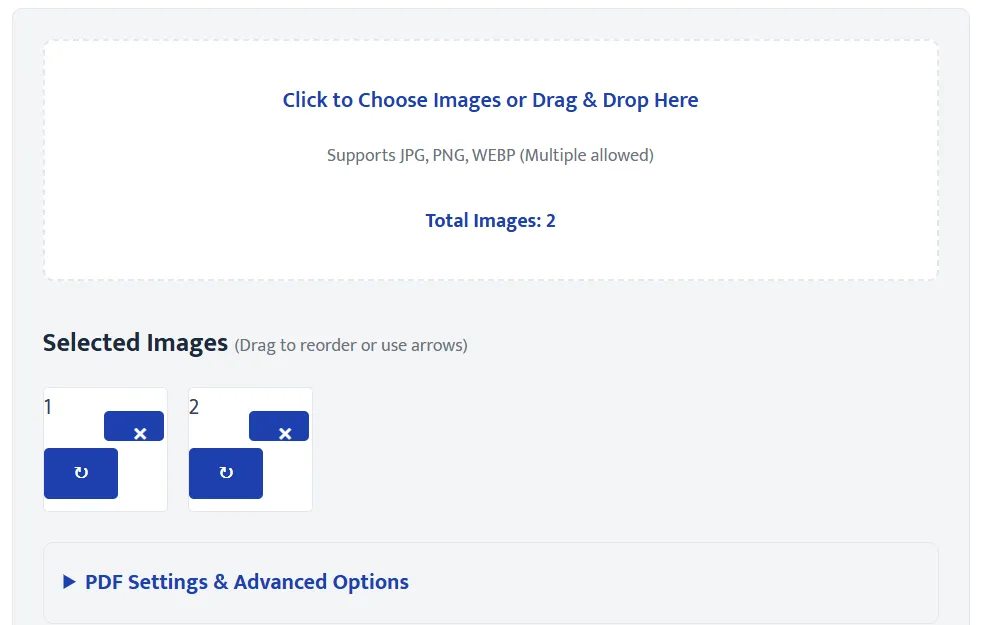
- Check the selected images in the preview section below.
- Open the PDF Settings panel to adjust the layout if needed.
- Click the Convert to PDF button.
- Wait a few moments while the tool processes your files.
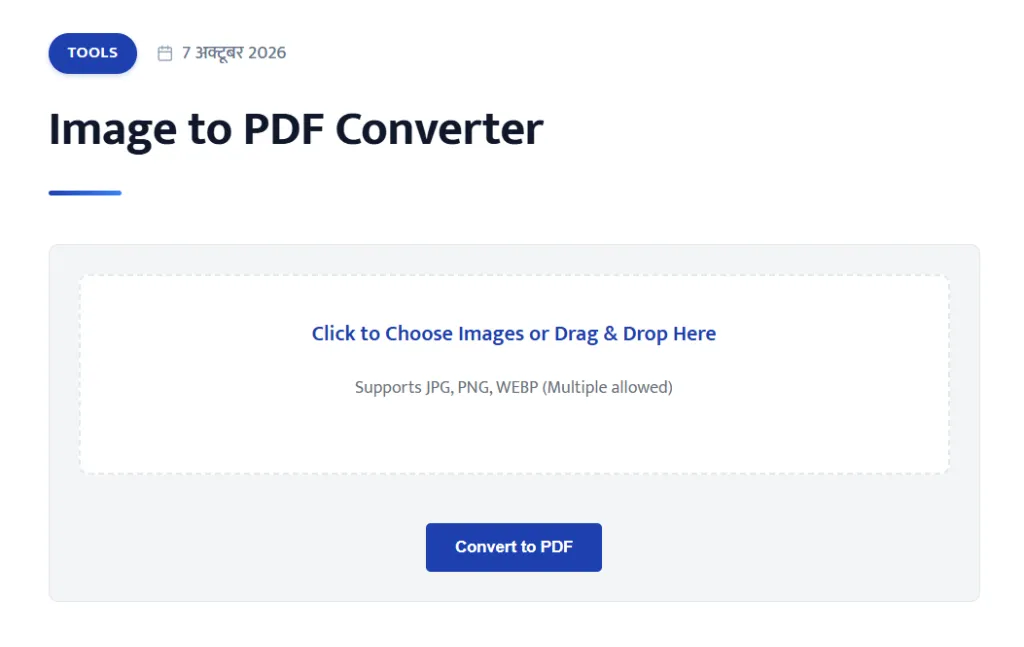
Once the success message appears, you can click the download button to save your file securely to your device.
How to Convert Multiple Images into One PDF
When you need to combine several pictures, you can select them all at once during upload. The tool will generate a thumbnail card for each image showing its file name, file size, and page number.
If the images are in the wrong order, you can fix this easily. You can drag and drop any thumbnail to a new position. If you prefer, you can also use the small arrow buttons on each card to move an image left or right. If a photo is upside down, click the rotate icon on the thumbnail to turn it 90 degrees. If you uploaded a wrong file by mistake, just click the remove button on that specific image card.
Available PDF Settings
To give you complete control over your final document, the tool includes an advanced settings area.
Page Size
You can choose the exact physical dimensions of your PDF pages. A4 is the standard choice for most forms and documents. Letter and Legal sizes are also available. If you want the PDF page to perfectly match your image dimensions without any extra white space, you can select the Auto option.
Orientation
The orientation decides whether the page stands tall or wide. You can force all pages to be Portrait or Landscape. Alternatively, selecting Auto allows the tool to automatically detect the best orientation based on the shape of each individual image.
Margin
Margins add empty white space around your images. You can choose No Margin for edge-to-edge images, or select Small, Medium, or Large margins to give your document a cleaner, framed look.
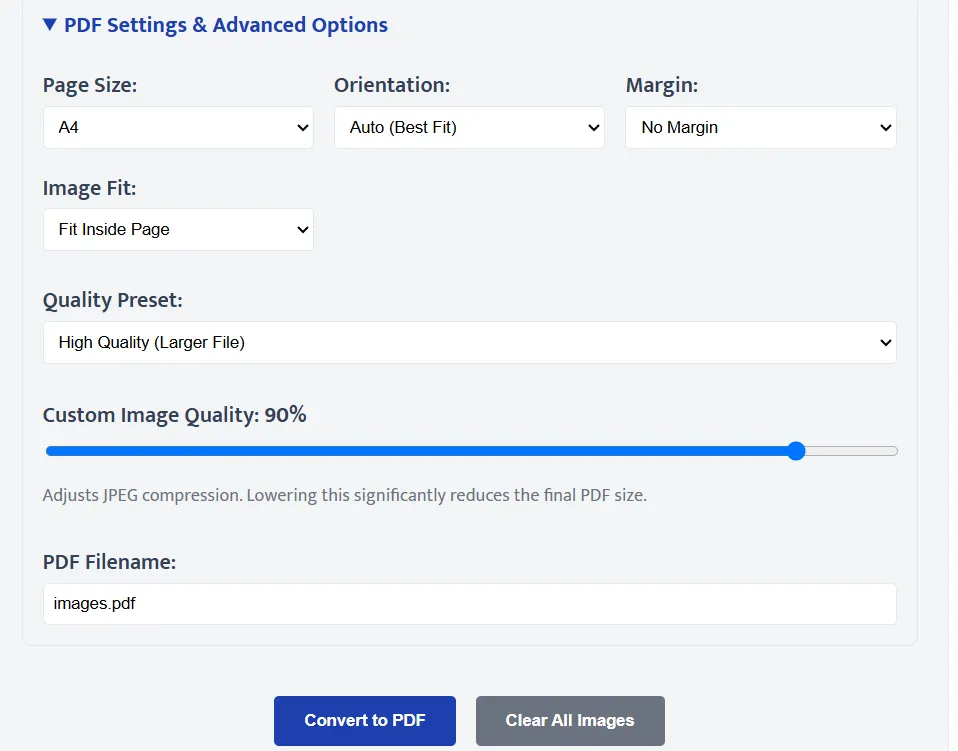
Image Fit
This controls how your picture sits inside the page. Fit Inside Page ensures your entire image is visible without getting stretched or cropped. Actual Size places the image at its normal resolution, centered on the page.
Image Quality
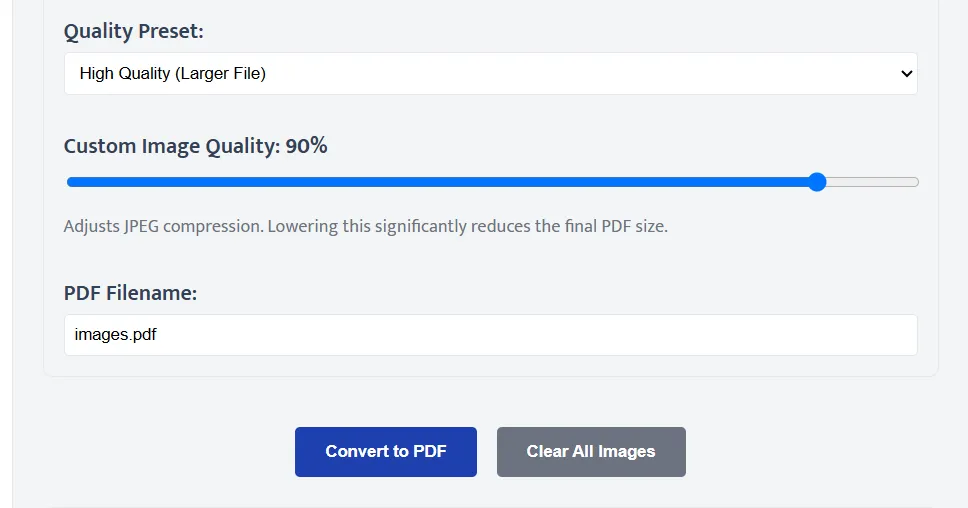
High-resolution images can result in a massive PDF file. The quality controls help you manage this effectively. You can select a Quality Preset like High Quality, Balanced, or Low File Size.
Selecting a preset automatically updates the custom image quality slider. If you need a very small file for an email attachment, lowering this slider reduces the image data, which significantly shrinks the final PDF size.
How to Download the PDF
Under the settings, you can type a custom filename for your document. If you leave it blank, it defaults to images.pdf.
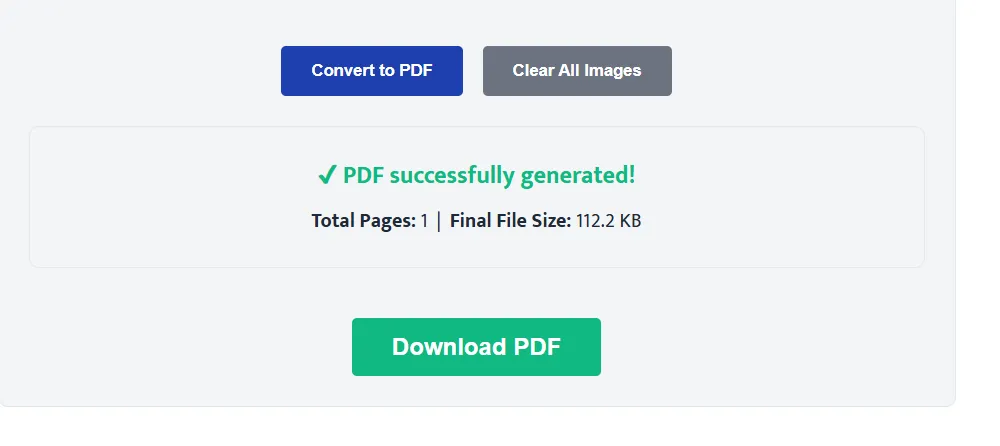
After clicking Convert to PDF, the tool processes everything locally. You will see a live progress update showing which image is currently being processed. Once finished, a success message displays the total number of pages and the final PDF file size. A large Download PDF button will then appear so you can save the file directly.
Practical Use Cases
This converter is highly useful in many daily situations. Students can take photos of handwritten assignments and combine them into a single PDF for submission. You can capture multiple receipts and merge them into one file for expense reports. It is also a great way to combine various screenshots or identity documents into a single neat file before submitting an online application.
Common Problems and Solutions
Image not uploading Ensure your file is a standard JPG, PNG, or WEBP image. Unrecognized formats will not be processed by the tool.
PDF file size is too large If you uploaded many heavy photos, the final PDF will naturally be large. Open the PDF Settings and select the Low File Size preset, or manually lower the image quality slider before converting again.
Pages are in the wrong order The PDF generates pages exactly in the order shown in the thumbnail list. Before clicking convert, use the drag and drop feature or the arrow buttons to arrange your images correctly.
Browser freezing or slowing down Because all processing happens on your device, uploading dozens of extremely high-resolution camera photos at once might slow down older phones. Try uploading fewer images at a time or lowering the quality slider.
Frequently Asked Questions (FAQs)
What is an Image to PDF Converter?
It is a tool that takes common image files like JPG and PNG and merges them into a standardized PDF document.
Can I convert multiple images into one PDF?
Yes. You can upload multiple images simultaneously and the tool will place each image on a new page within the same PDF file.
Can I change the PDF page size?
Yes, the advanced settings allow you to choose A4, Letter, Legal, or an Auto size that matches your image dimensions perfectly.
Does the tool preserve image proportions?
Yes. By default, the tool fits the image inside the page margins without stretching or distorting the original aspect ratio.
Can I reorder images after uploading?
Absolutely. You can drag and drop the image thumbnails to rearrange them, or use the arrow controls provided on each image.
Can I change image quality?
Yes, you can use the quality presets or the percentage slider to reduce image quality, which directly reduces the final PDF file size.
Are my images secure?
Yes. The entire PDF generation process happens locally inside your web browser. Your private photos are never uploaded to our servers.
Can I download the generated PDF?
Yes. Once the conversion finishes, a dedicated download button appears allowing you to save the generated PDF with your chosen filename.
Conclusion
Whenever you need to convert images to PDF, you can use this tool to easily arrange your photos and create a customized document according to your exact needs. ऐसे ही उपयोगी online tools और सरकारी जानकारी के लिए Google पर Sarkari Place सर्च करके हमारी वेबसाइट पर नई जानकारी देख सकते हैं।